Claude Code & Azure
I’m sure you’ve heard about Anthropic’s Claude Code. I’ve been an active user for the past 3 months. It’s a great tool; however, it requires a separate subscription until now. Claude has always been available on AWS and GCP (and the main assumption is that it hasn’t been available on Azure due to Anthropic’s rivalry with OpenAI), but things have now changed—Microsoft announced a partnership with Anthropic and Claude models are available via Azure Foundry.
That’s excellent news for two main reasons:
- First, it allows you to provision Claude models in Azure, which means it’s now available across all three major cloud providers (AWS, GCP, Azure), and when you have a multi-cloud strategy, it’s a big plus. It also means that there’s no need to change the LLM provider when you switch clouds - you can stick with Claude everywhere.
- Second, it allows you to use consolidated billing via Azure, which is a great option for companies that already have significant Azure spend and want to keep all their cloud expenses in one place.
- Third, and most importantly for me, it allows me to use Claude Code via Azure Foundry, which means I can use my existing Azure subscription to access Claude Code.
So let’s configure it 🚀
Let’s go through the steps required to set up Claude Code via Azure Foundry. I assume that you already have an Azure account with billing set up. If you don’t have one, you can create it here.
Next, you should have the Azure CLI installed and configured on your machine (if you want to use the passwordless authentication method instead of using an actual API key). You can find the installation instructions here.
Step 1: bootstrap the necessary Azure resources
I prepared a small Terraform repo that creates all the necessary Azure resources (except the deployment resource, which is, unfortunately, not properly supported via Terraform yet - at least for the newest Claude models). You can find the repo here. Clone the repo and fill in the necessary variables (via terraform.tfvars file or via environment variables export TF_VAR_{variable_name}=value). The main variables you need to set are:
subscription_id- your Azure subscription ID (necessary for the provider configuration)location- Azure region where the resources will be created (my default isswedencentral, but you can choose any region that supports Foundry)ai_foundry_project_name- name of the AI Foundry project. It must be unique since it’s used for the endpoint which Claude Code will call
Step 2: deploy Claude model for Claude Code via Azure Foundry portal
Initially I wanted to automate the deployment of Claude Code models via Terraform as well, but unfortunately, at the moment of writing this post, the deployment of Claude models via Azure Foundry doesn’t work (no matter what I try - AzureRM or AzApi). Deployment hangs for > 5 minutes and fails with the Failed provisioning state in Azure Foundry UI, and in the Terraform operation result I see the following error:
│ --------------------------------------------------------------------------------
│ RESPONSE 200: 200 OK
│ ERROR CODE: AnthropicOrganizationCreationException
│ --------------------------------------------------------------------------------
│ {
│   "id": "/subscriptions/<REDACTED>/providers/Microsoft.CognitiveServices/locations/swedencentral/operationResults/<REDACTED>",
│   "name": "<REDACTED>",
│   "status": "Failed",
│   "startTime": "2025-11-30T20:43:43Z",
│   "endTime": "2025-11-30T20:49:28Z",
│   "percentComplete": 0.0,
│   "error": {
│     "code": "AnthropicOrganizationCreationException",
│     "message": "Internal Server Error."
│   }
│ }
│ --------------------------------------------------------------------------------
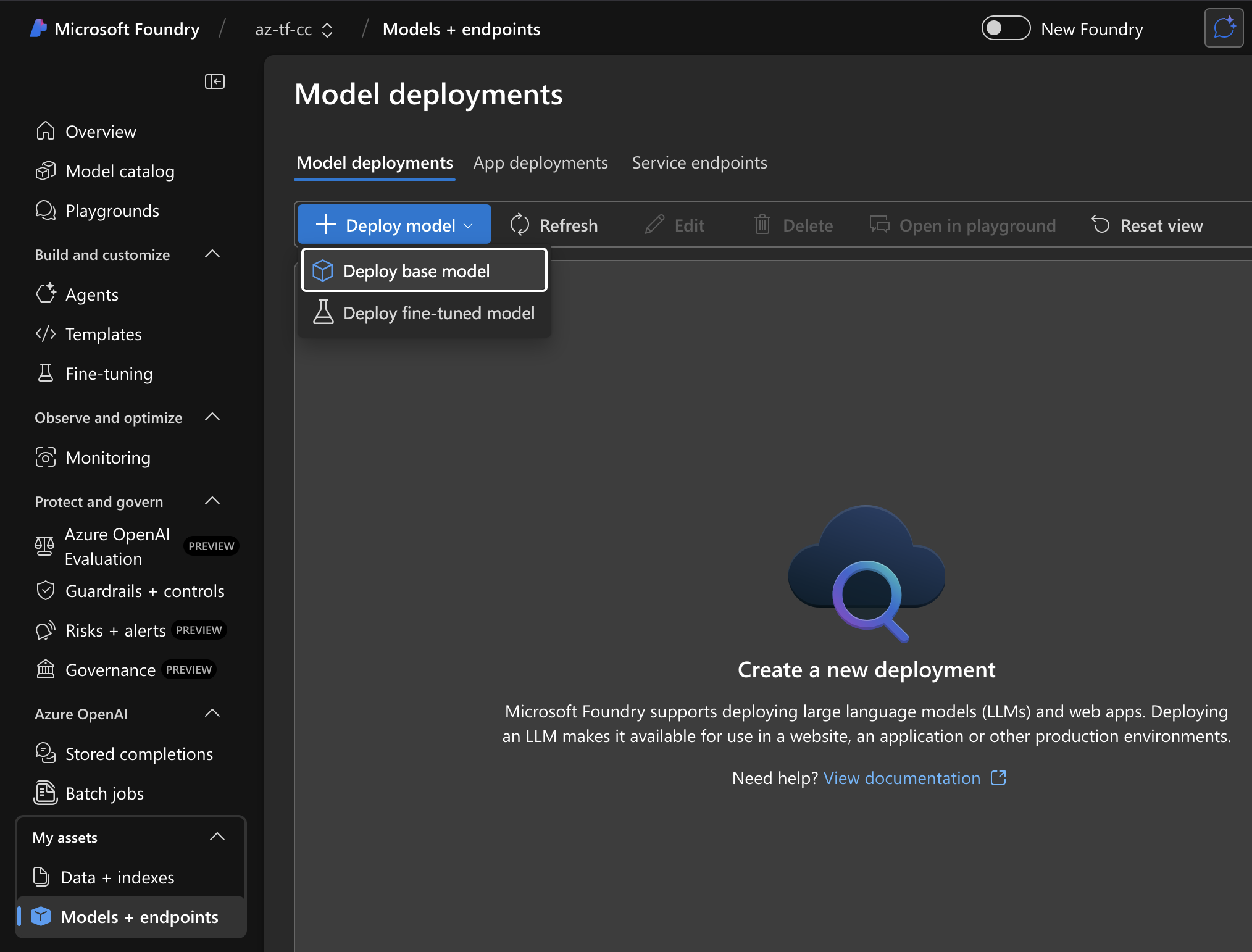
So for now, let’s just create the deployment manually via Azure AI Foundry portal, and hopefully, in the future, it will be possible to automate it via Terraform as well. Let’s go to the main Azure AI Foundry portal page: https://ai.azure.com/foundryResource/overview and click on the “Models + endpoints” on the left sidebar, then click on “Deploy model” -> “Deploy base model”:
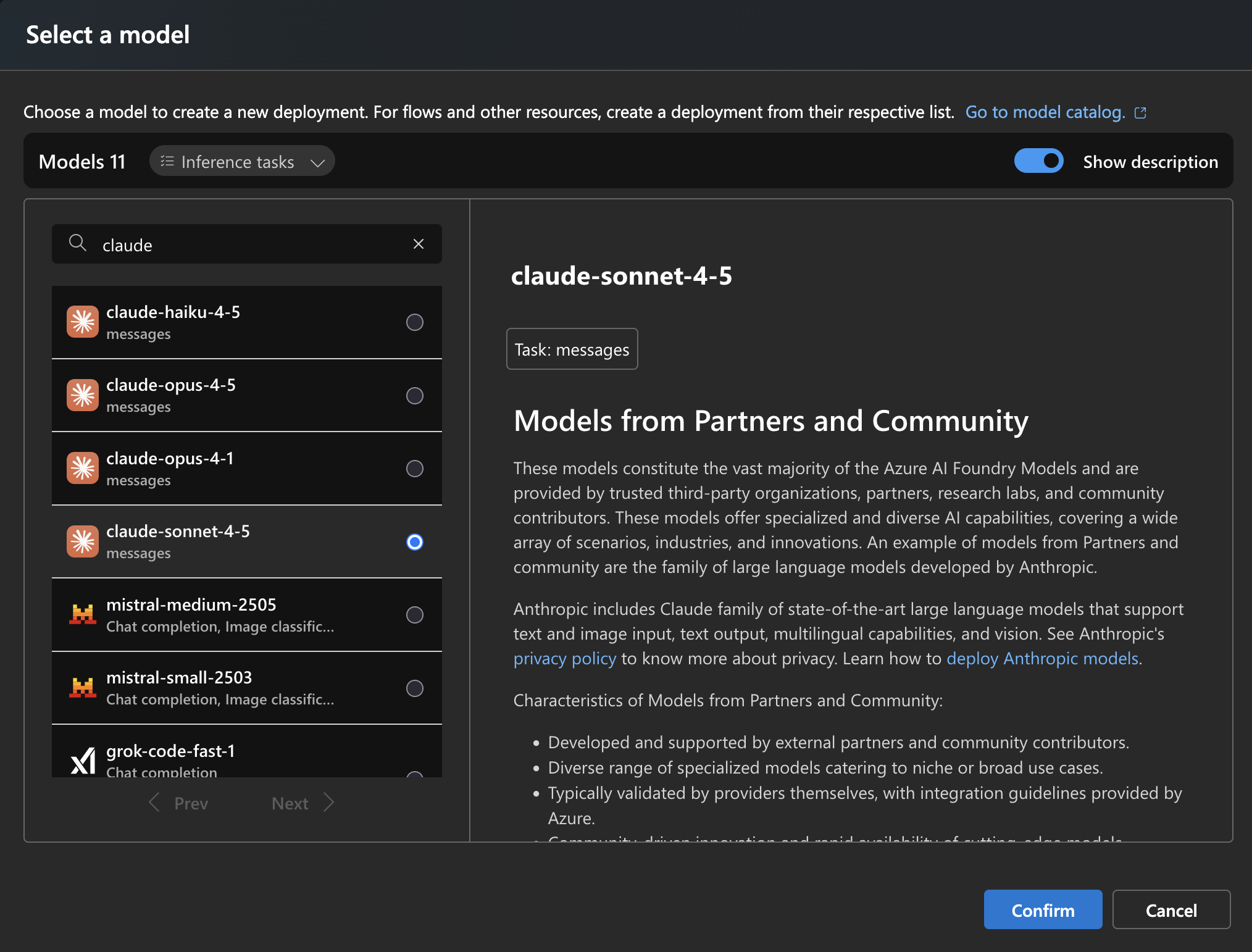
Next, search for “claude” and choose the model. I’ll go with the current de-facto standard for Claude Code - Sonnet 4.5:
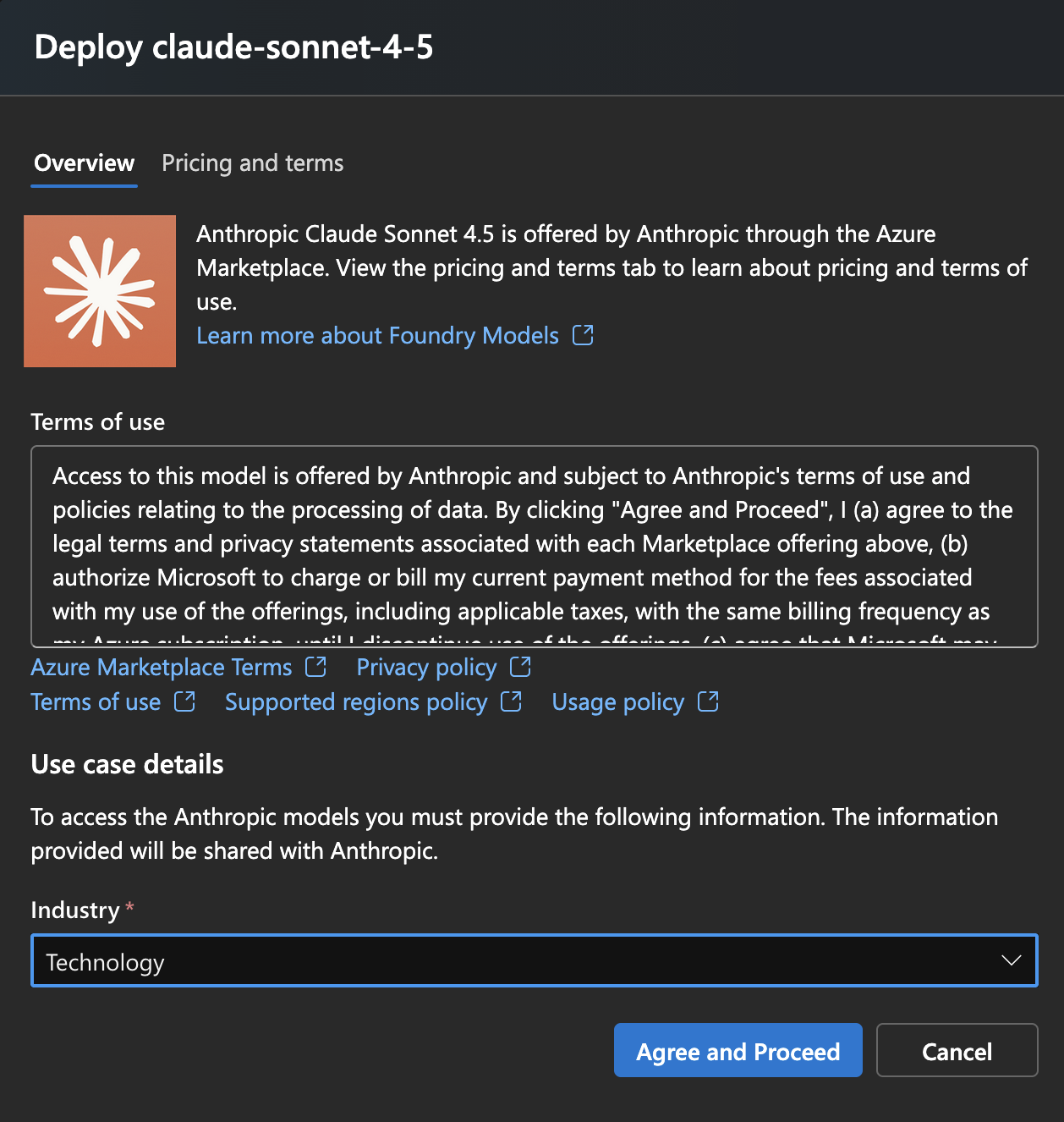
After clicking “Confirm”, choose the industry (I’ll go with “Technology”), and click “Agree and proceed”:
Final confirmation - click “Deploy”:
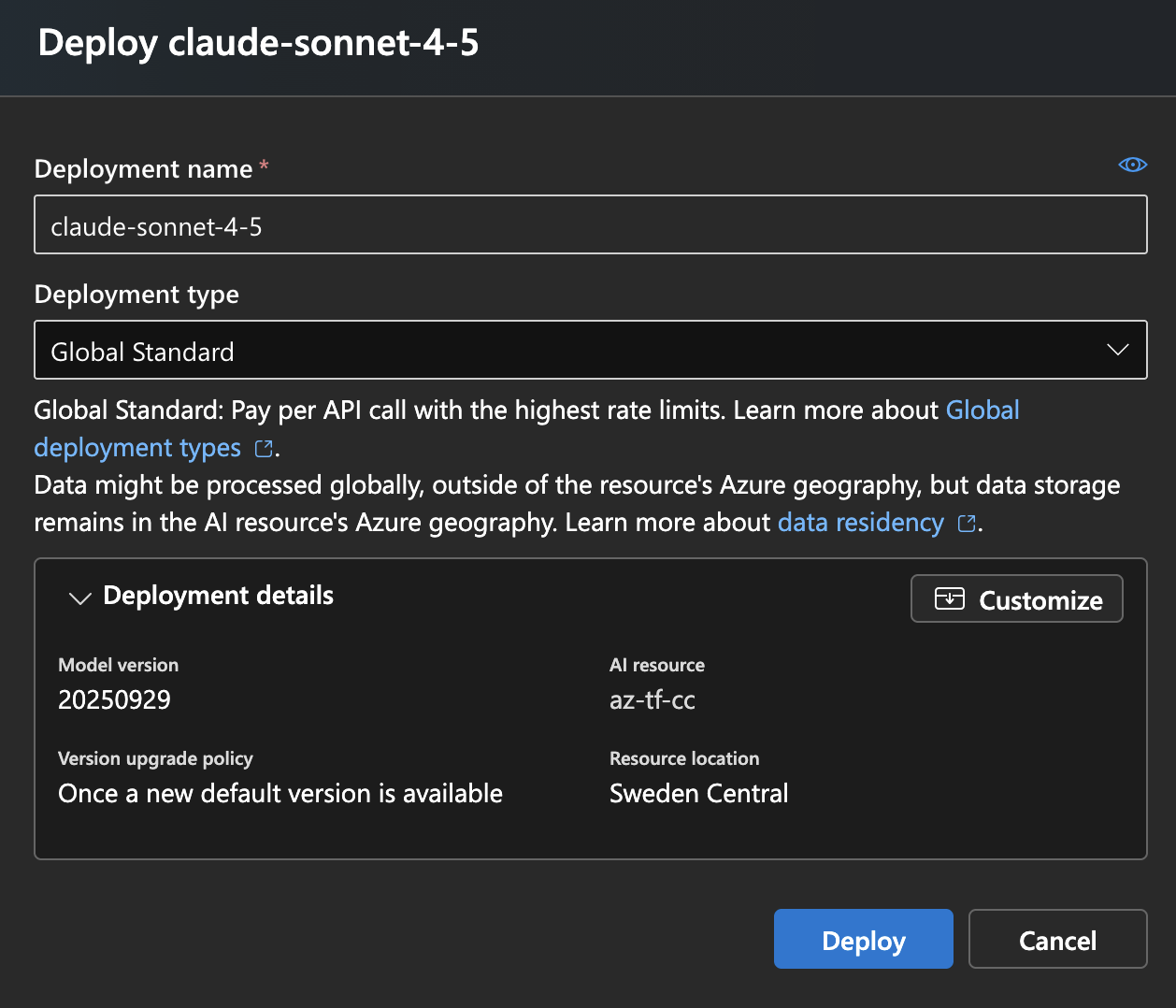
For some time, model will be in “Creating” state:
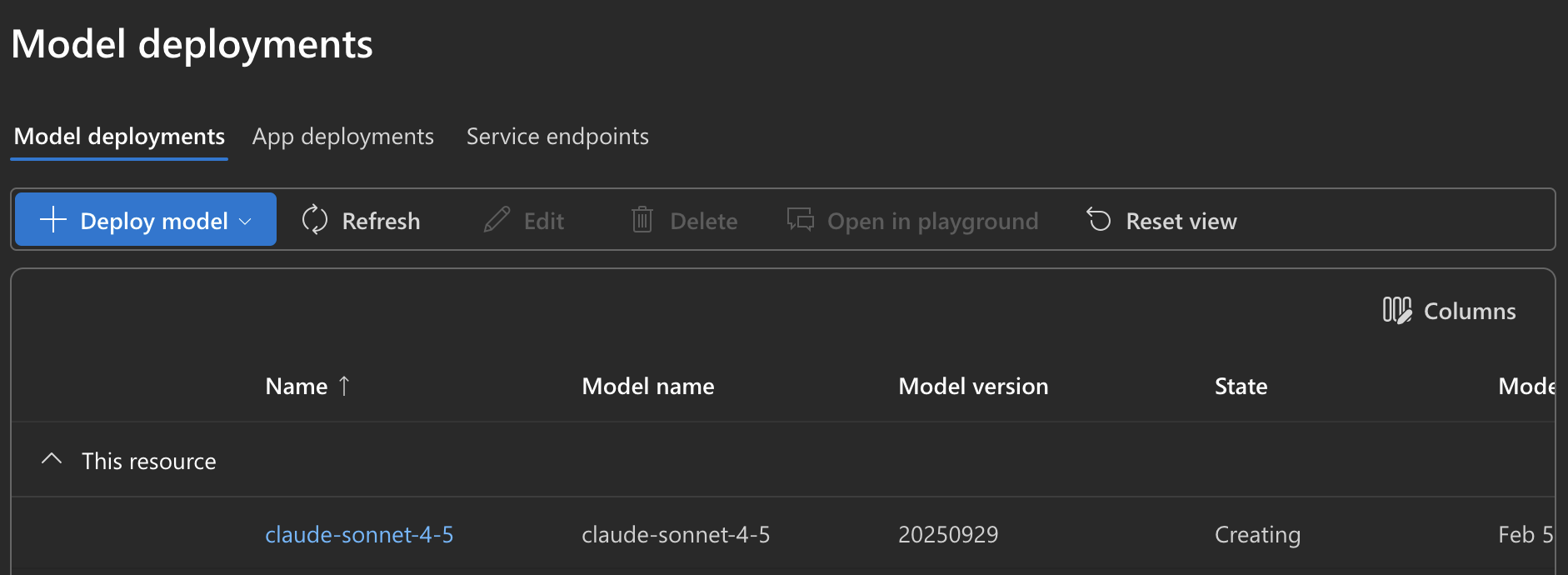
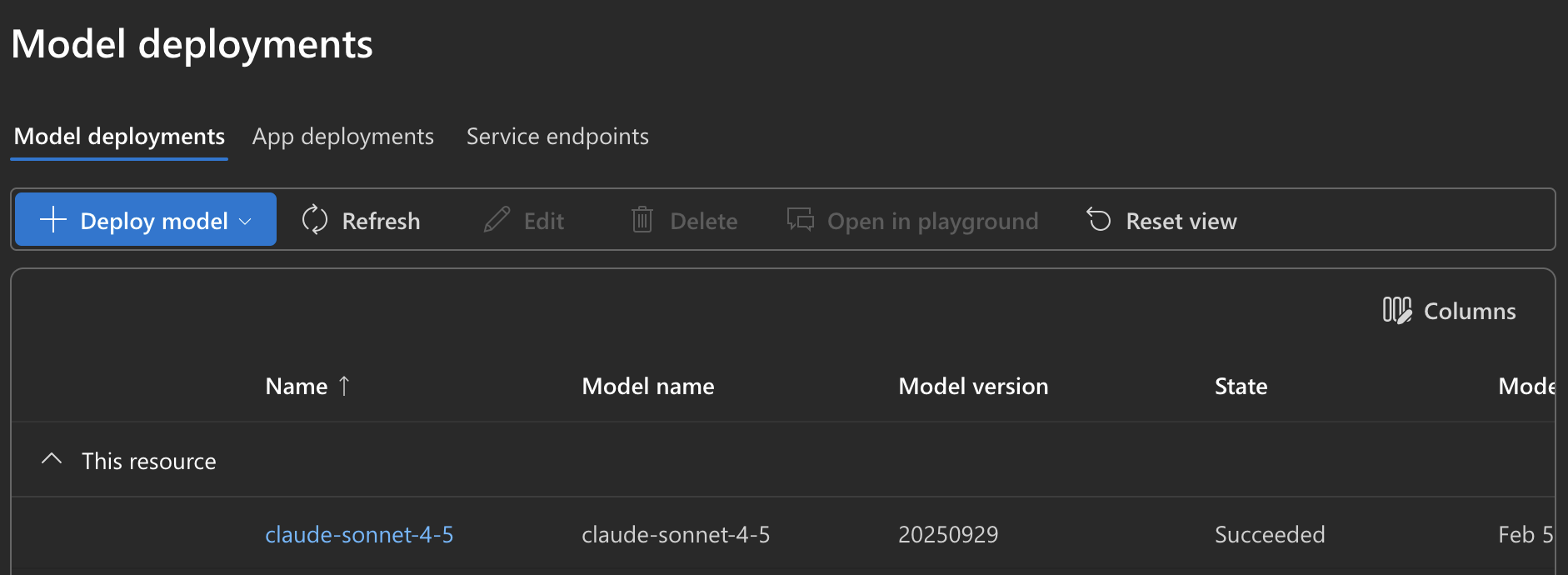
When it transitions to “Succeeded” state, we’re good to go:
Step 3: setting up Claude Code with the deployed model
So now we have everything set up. We have the necessary Azure resources created via Terraform, and we have the Claude Sonnet 4.5 model deployed via Azure Foundry portal. To finish the setup, follow these steps:
- Install Claude Code itself via
curl -fsSL https://claude.ai/install.sh | bash
or some other installation way, refer to the official quickstart guide.
- Choose the authentication method. Currently two methods are supported:
- Azure AI Foundry API key
- Passwordless authentication via Azure CLI
Both are described in the official Claude Code Azure AI Foundry quickstart guide.
In both cases, you need to set the following environment variables:
CLAUDE_CODE_USE_FOUNDRY
ANTHROPIC_FOUNDRY_RESOURCE
ANTHROPIC_DEFAULT_SONNET_MODEL
ANTHROPIC_DEFAULT_HAIKU_MODEL
ANTHROPIC_DEFAULT_OPUS_MODEL
You can retrieve the values from the Terraform output via the following command:
terraform output -raw claude_ai_foundry_config_az_toolchain
After getting the result, append it to your shell profile (e.g. ~/.bashrc or ~/.zshrc), so the environment variables are set automatically on each shell start:
export CLAUDE_CODE_USE_FOUNDRY=1
export ANTHROPIC_FOUNDRY_RESOURCE=az-tf-cc
export ANTHROPIC_DEFAULT_SONNET_MODEL='claude-sonnet-4-5'
export ANTHROPIC_DEFAULT_HAIKU_MODEL='claude-haiku-4-5'
export ANTHROPIC_DEFAULT_OPUS_MODEL='claude-opus-4-1'
That’s enough for the passwordless approach, which relies on the Azure CLI authentication (current session).
If you want to use the API key approach instead, the previous output is still necessary, but you also need to add an additional environment variable with the API key itself. You can get it from the Terraform output as well:
terraform output -raw claude_ai_foundry_config_api_key
And then append it to your shell profile as well:
export ANTHROPIC_FOUNDRY_API_KEY='<API_KEY_FROM_TERRAFORM_OUTPUT>'
Additional notes
I’ve listed some useful notes for using Claude Code via Azure Foundry below (the setup wasn’t entirely straightforward, so hopefully these notes will help you avoid some pitfalls):
Enabling additional models (Claude 4.5 Opus / Haiku)
It’s worth mentioning that each model requires separate deployment - just repeat the same steps in your existing project as you did for Claude Sonnet 4.5. Without that, if you try to change the Claude model via /model and choose Opus or Haiku, you’ll get an error that the model is not deployed:
> /model
  ⎿  Set model to claude-opus-4-5

> test
  ⎿ API Error: 404 {"error":{"code":"DeploymentNotFound","message":"The API deployment
    claude-opus-4-5 does not exist. If you created the deployment within the last 5 minutes,
    please wait a moment and try again.","details":"The API deployment claude-opus-4-5 does not
    exist. If you created the deployment within the last 5 minutes, please wait a moment and try
    again."}}
Costs and context
With the Claude Code subscription-based approach, you’ll simply get rate limited after exceeding the included quota. With Azure Foundry, you’ll be billed according to API pricing, which means you need to keep an eye on your usage to avoid unexpected costs. You can use the /cost command to see the current usage and costs for the current session:
> /cost
  ⎿  Total cost:            $0.0756
     Total duration (API):  18s
     Total duration (wall): 5m 57s
     Total code changes:    0 lines added, 0 lines removed
     Usage by model:
            claude-sonnet:  843 input, 365 output, 0 cache read, 18.0k cache write ($0.0756)
And, of course, you can always check your Azure billing portal for more detailed information about the resource costs.
Use supported Claude Code versions
When I tried to set this up, I faced some issues due to outdated Claude Code version. Please ensure that you’re running at least 2.0.45, since that’s the first version that comes with Azure AI Foundry support.