
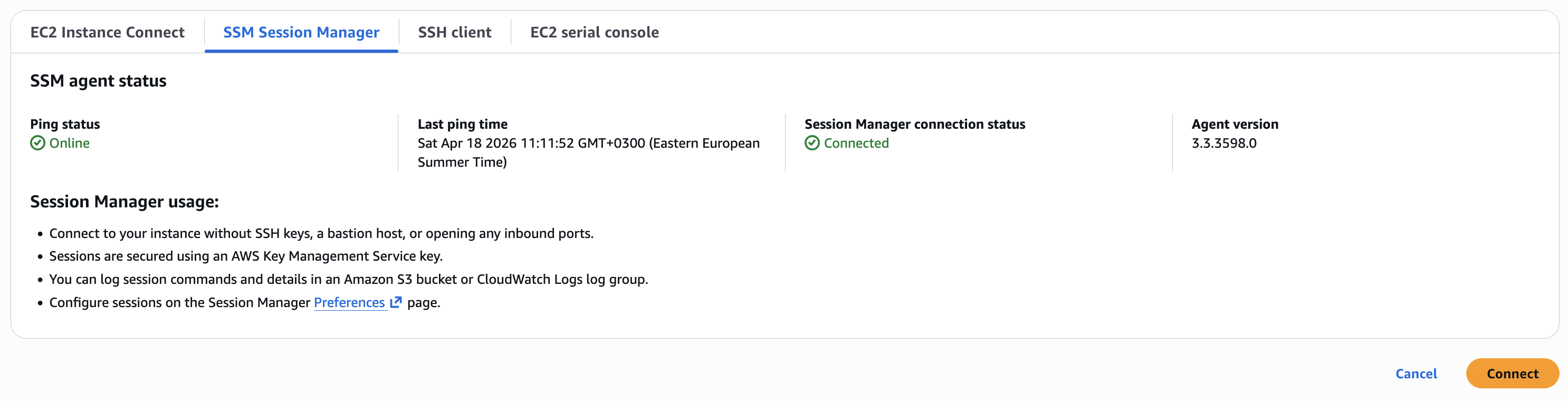
AWS SSM Session Manager became my default way of connecting to EC2 instances, since it’s convenient, secure and doesn’t require opening SSH ports / configuring bastion etc. It’s enough to have the right IAM permissions (AmazonSSMManagedInstanceCore managed policy) and SSM agent installed and running on the instance, which is the case for most default AMIs. You can start a session via AWS Console as simple as clicking “Connect” on the EC2 instance page and selecting “Session Manager” as the connection method:
However, by default, when you start a session, it logs you in as ssm-user with /bin/sh shell and home directory set to /home/ssm-user (or /usr/bin on some systems). As an example, on default AWS Ubuntu AMIs, this is the default login config:
$ pwd
/var/snap/amazon-ssm-agent/13009
$ whoami
ssm-user
$ echo $0
sh
This is not ideal for me, as I prefer to use my own / default OS user account with a more feature-rich shell and a home directory that contains my configuration files.
Since SSM Session Manager’s agent listens to AWS API calls, it’s possible to configure account-level Session Manager defaults that will be applied to all sessions started in the account. To automate this via Terraform, you can use the aws_ssm_document resource that will override the default “SSM-SessionManagerRunShell” document with your own configuration. Here’s an example of how to do that:
resource "aws_ssm_document" "session_manager_prefs" {
  name            = "SSM-SessionManagerRunShell"
  document_type   = "Session"
  document_format = "JSON"
  region          = "us-west-1"

  content = templatefile("${path.module}/preferences.json.tftpl", {
    linux_shell_profile = file("${path.module}/linux-shell-profile.sh")
  })
}
So two other documents are required here: preferences.json.tftpl and linux-shell-profile.sh. The first one is the actual SSM document that will be applied to all sessions, and the second one is a shell script that will be executed when a session starts.
{
    "schemaVersion": "1.0",
    "description": "Document to hold regional settings for Session Manager",
    "sessionType": "Standard_Stream",
    "inputs": {
        "cloudWatchEncryptionEnabled": true,
        "cloudWatchLogGroupName": "",
        "cloudWatchStreamingEnabled": true,
        "idleSessionTimeout": "20",
        "kmsKeyId": "",
        "maxSessionDuration": "",
        "runAsDefaultUser": "",
        "runAsEnabled": false,
        "s3BucketName": "",
        "s3EncryptionEnabled": true,
        "s3KeyPrefix": "",
        "shellProfile": {
            "linux": ${jsonencode(linux_shell_profile)},
            "windows": ""
        }
    }
}
Please note that the JSON configuration defines some other settings as well, which may differ from your preferences - double-check with your current settings via importing the default document and running terraform plan to see the diff, and adjust accordingly.
The most important part for our use case is the shellProfile section, where we specify the shell profile script that will be executed when a session starts. For me, since I use Bash as my default shell, and wanted to switch to a default OS user for both Ubuntu and AL2023 AMIs, the linux-shell-profile.sh looks like this:
exec /bin/bash
for u in ubuntu ec2-user; do id "$u" &>/dev/null && exec sudo -u "$u" -i; done
It doesn’t look very elegant, but it does the job - it tries to execute a shell as ubuntu user, and if that fails, it tries ec2-user, which is the default user for AL2023 AMI. You can adjust this script to your needs, for example, by adding more users or using a different shell.
Please note that this script is visible each time you start a session (another reason why I tried to make it as short as possible), and it will be executed for every session, so make sure to test it properly before applying it to production environments. As an example, after applying the above configuration, this becomes the default login experience when I start a session:
exec /bin/bash
for u in ubuntu ec2-user; do id "$u" &>/dev/null && exec sudo -u "$u" -i; done
$ ssm-user@ip-10-0-0-47:/var/snap/amazon-ssm-agent/13009$ for u in ubuntu ec2-user; do id "$u" &>/dev/null && exec sudo -u "$u" -i; done
ubuntu@ip-10-0-0-47:~$ pwd
/home/ubuntu
ubuntu@ip-10-0-0-47:~$ whoami
ubuntu
ubuntu@ip-10-0-0-47:~$ echo $0
-bash
ubuntu@ip-10-0-0-47:~$
So now, every time I start a session, I get logged in as ubuntu user with /bin/bash shell and home directory set to /home/ubuntu (and similarly for AL2023), which is exactly what I wanted. Not the most elegant solution, but it works and doesn’t require to execute a bunch of additional commands in the beginning of each session.